Topic: DMD0292
Trend Overview
The Trend View tab is used to visually monitor the values of Do-more controller data elements over time. The Trend View can monitor any readable numeric location, or any readable bit location, or any constant value.
The Trend View logs the values of the controller elements on each pane of the Trend. Those values are displayed on a moving graph. The Trend View also provides a historical mode which lets the programmer view all of the data that is currently stored for each of the data points on the display. The logged data values can also be exported to a CSV file for importing into a third-party application for further research.
The Trend View can provide a runtime snapshot of all of the controller elements in the Trend at a specific time by clicking with the mouse at the desired time location on the Trend.
Creating a new Trend View
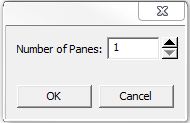 A new (empty) Trend View can be created by selecting
Debug-> Trend View -> New
from the Online Toolbar to create a new Trend View, or clicking the Trend
button on the Online toolbar. The following dialog is displayed prompting
for the number of Panes to initially create:
A new (empty) Trend View can be created by selecting
Debug-> Trend View -> New
from the Online Toolbar to create a new Trend View, or clicking the Trend
button on the Online toolbar. The following dialog is displayed prompting
for the number of Panes to initially create:
A Trend View can also be created and pre-filled with the critical elements
from the selected instructions using the following methods:
Right-click on any instruction in a ladder diagram and select Trend Instruction - the one exception is the Closed Loop Controller (PID) instruction which will open the PID View.
Highlight a range of ladder logic instructions, then select Debug-> Monitor Values-> from Rung Contact/Coils to Trend View
Highlight a range of entries in a Data View, then right-click and select Trend Selection
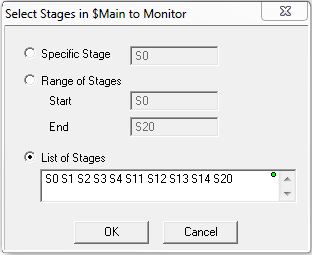 Note: a special case exists when trending
Stage (SG) instructions. This
dialog will be displayed giving the programmer the option to trend one
of the following:
Note: a special case exists when trending
Stage (SG) instructions. This
dialog will be displayed giving the programmer the option to trend one
of the following:
A specific Stage instruction
A range of Stage instructions
Any mix of the Stage instructions in the current Program, the default list will include all of the Stage instructions in the Program
Saving and Opening an Existing Trend View
Once a Trend View has been created, and its display options have been set, the Trend View configuration can be saved to a file using the Debug-> Trend View-> Save As menu option. Note: only the Trend View configuration is saved, not the data values logged while the Trend is running. For information on saving the data values refer to the help topic for Export Range.
A saved Trend View can be reopened using the Debug-> Trend View-> Open to invoke a dialog to select a previously saved Trend. Once the Trend View is opened it will begin logging data values for the controller elements in the Trend.
See Also:
Using the Trend View to Monitor the Do-more Controller
Related Topics: