Topic: DMD0293
Using the Trend View
Once a Trend View has been created and it's display options have been configured, the Trend will begin collecting data for each of the controller elements on each of the panes and displaying that data in graphical form in the Trend View.
Refer to the Trend View to the right and notice some things to be aware of when using Trend Views:
Discrete points, integer values and real values are placed in separate panes.
Variables are graphed using solid horizontal lines.
Constants are graphed using dotted horizontal lines.
Red vertical lines indicate a loss of communication, and blue vertical lines indicate communication is re-established.

The Crosshair Cursor
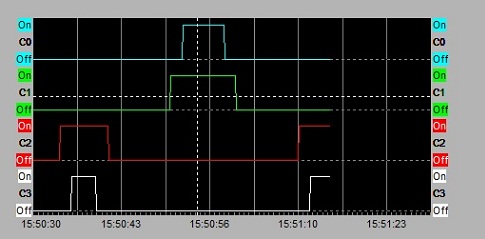 The crosshair cursor
If there are multiple Panes in the Trend View, the vertical bar of the crosshair will extend through all of them.
Note: the crosshair cursor can be disabled in the Trend View Options.
Using the Crosshair Zoom In / Out
Using the CTRL key and the scroll wheel on the mouse will put the Trend
View into Historical Mode and zoom into
or out of the area under the center of the crosshair as follows:
ctrl + scrolling upward will zoom into the area by decreasing the Time Scale
ctrl + scrolling downward will zoom out of the area by increasing the Time Scale
 Using
the Crosshair to Snapshot Data
Using
the Crosshair to Snapshot Data
Left-clicking the mouse will take a snapshot of all the values on all of the Panes on the Trend at the time where the cross hair was located, then present that data on the snapshot dialog.
Clicking the Copy Contents to Clipboard button will copy the data displayed on the snapshot dialog to the Windows clipboard, which can then be pasted into any other Windows application for further processing.
 Trend
View Options - opens the Trend
View Options dialog to specify the controller elements that will be
included in the Trend and to choose how those elements will be displayed
on the Trend.
Trend
View Options - opens the Trend
View Options dialog to specify the controller elements that will be
included in the Trend and to choose how those elements will be displayed
on the Trend.
 Toggle
Historical Mode - stops the real-time (live) update of the trend
displays, and adds a scroll bar to the bottom of the trend panel that
allows the user to scroll backwards in time through all of the data that
is currently stored for each of the data points on the displays. The data
gathering for each data point on the trend displays will continue while
the Trend View is in historical mode.
Toggle
Historical Mode - stops the real-time (live) update of the trend
displays, and adds a scroll bar to the bottom of the trend panel that
allows the user to scroll backwards in time through all of the data that
is currently stored for each of the data points on the displays. The data
gathering for each data point on the trend displays will continue while
the Trend View is in historical mode.
When the Trend View is in historical mode the Tab name will have the word [HISTORICAL] added to it.
Clicking the button again will re-enable the real-time (live) update of the trend displays, and the trend graphs will be updated with all of the data that was gathered while the displays were in historical mode.
 Export
Range - is used to export the values that are currently stored
for each data point on the trend. All of the accumulated data points,
or only the data points between two user-selected time stamps can be exported.
Export
Range - is used to export the values that are currently stored
for each data point on the trend. All of the accumulated data points,
or only the data points between two user-selected time stamps can be exported.
 File Name - selects the
name of the file in which to store the export data. The default file name
will be \Do-more Designer\Projects\Trend View 1.txt. The filename and
destination folder can be changed by clicking the "Browse ..."
button and navigating the resulting File Open dialog.
File Name - selects the
name of the file in which to store the export data. The default file name
will be \Do-more Designer\Projects\Trend View 1.txt. The filename and
destination folder can be changed by clicking the "Browse ..."
button and navigating the resulting File Open dialog.
Append to File - specifies whether to append the export data to the file, saving the existing contents of the file, or to over-write the existing contents in the specified file. This option will be enabled automatically any time the specified file already exists.
Delimiter - designates what character will be used to separate the individual elements on each exported line of data. The default is a comma between each element on a line.
SPACE - insert a space between each element
TAB - insert a tab between each element
COMMA - insert a comma between each element (default)
Enclose in Quotes - designates which elements need to be enclosed in double-quotes
Date/Time - enclose both the Date and the Time in double quotes, for example: "2010/9/3","09:36:43.456",Heat_PID.PV,0.35
Element - enclose only the Element in double quotes, for example: 2010/9/3,09:36:43.456,"Heat_PID.PV",0.35
Value - enclose only the Value in double quotes, for example: 2010/9/3,09:36:43.456,Heat_PID.PV,"0.35"
Prefer Nicknames to Element Names - if the elements being exported have nicknames assigned to them, the nicknames will be in the export file instead of the element. For example, if C13 has the nickname "Low Low Alarm", the exported lines for this data point would be "2010/9/1","12:02:54.819","Low Low Alarm","off"
Specify decimal places for floating point data - enabling this selection and selecting one of the values from the list (0 - 10) will export all floating point numbers with the selected number of decimal places.
 Select Time Range - designates
how much data to export, this can be either all of the data accumulated
since the Trend View was opened, or a range specified by a start time
and an end time.
Select Time Range - designates
how much data to export, this can be either all of the data accumulated
since the Trend View was opened, or a range specified by a start time
and an end time.
Start Time - specifies the beginning of the data to export
Earliest Data - start exporting from the beginning of when the Trend View started accumulating the data points
User Selected Time - start exporting data from the time specified by using the scroll bar to move the trend to the desired time and left-click on the trend to set the time. The left-click will place a vertical bar on the trend with a 'S' at the top denoting the start time.
Select Again - will remove the current Starting Time and allow the selection of a different Starting Time
Ending Time - specifies the end of the data to export
Latest Data - export all of the data the Trend View has accumulated since it was opened
User Selected Time - stop exporting data at a time specified by using the scroll bar to move the trend to the desired time and left-click on the trend to set the time. The left-click will place a vertical bar on the trend with an 'E' at the top denoting the ending time.
Select Again - will remove the current Ending Time and allow the selection of a different Ending Time
 Confirm Selections -
will display the range of data points to export to the file.
Confirm Selections -
will display the range of data points to export to the file.
click Back to return to the previous dialog to change the export options
click Finish to perform the export operation
click Cancel to abort the export operation
Below is a sample of what the exported data will look like with the default export options:
2012/06/05,13:52:37.047,Heat_PID.PV,0.35
2012/06/05,15:48:02.160,Heat_PID.SP,0.62
2012/06/05,13:35:23.088,Heat_PID.Bias,0.035
2012/06/05,13:39:19.472,Heat_PID.Output,0.73
2012/06/05,12:02:54.819,C10,off
2012/06/05,12:02:54.819,C11,off
2012/06/05,12:02:54.819,C12,off
2012/06/05,12:02:54.819,C13,off
 Synchronize
with Other Trend Views or PID Views - is used to synchronize the
time frame and the starting time stamp of multiple PID Views and/or Trend
Views so that all synchronized views will display the same start time
and the same amount of time.
Synchronize
with Other Trend Views or PID Views - is used to synchronize the
time frame and the starting time stamp of multiple PID Views and/or Trend
Views so that all synchronized views will display the same start time
and the same amount of time.
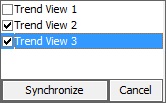 Click the Sync button to display a list of the available
PID Views and Trend Views. Select the Views from the list that are to
be synchronized with the current view then click the Synchronize button.
Click the Sync button to display a list of the available
PID Views and Trend Views. Select the Views from the list that are to
be synchronized with the current view then click the Synchronize button.
 Begin Recording - click
this button to begin the recording session, The button face will change
to a black square and the word [RECORDING]
will be displayed in the dialog's tab. Clicking this button again will
stop the recording, and a 'Save As' dialog will prompt you for the filename
in which to save the recorded data.
Begin Recording - click
this button to begin the recording session, The button face will change
to a black square and the word [RECORDING]
will be displayed in the dialog's tab. Clicking this button again will
stop the recording, and a 'Save As' dialog will prompt you for the filename
in which to save the recorded data.
 Pause Recording - stops
recording data while the button is depressed.
The button will appear depressed and the word [RECORDING
- PAUSED] will be displayed in the dialog's tab. Click the button
again to continue recording data, or click the cancel button to stop the
recording session completely.
Pause Recording - stops
recording data while the button is depressed.
The button will appear depressed and the word [RECORDING
- PAUSED] will be displayed in the dialog's tab. Click the button
again to continue recording data, or click the cancel button to stop the
recording session completely.
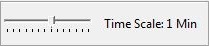 Time Scale - sets the overall
amount of time to be displayed in the all of the Panes.
Time Scale - sets the overall
amount of time to be displayed in the all of the Panes.
The Time Scale can be set to the following;
500ms
1 Second
5 Seconds
10 Seconds
20 Seconds
30 Seconds
45 Seconds
1 Minute (the default)
2 Minutes
5 Minutes
7 Minutes
10 Minutes
30 Minutes
1 Hour
The Time scale value is set by the following methods:
left-clicking on the Time Scale icon at the desired interval location
left-clicking on the Time Scale icon at the desired interval location then use the arrow keys or the scroll wheel to decrease or increase the Time Scale value
left-click and hold the slider, then drag it left (to decrease) or right (to increase) the Time Scale value
See Also:
Using the Trend View